
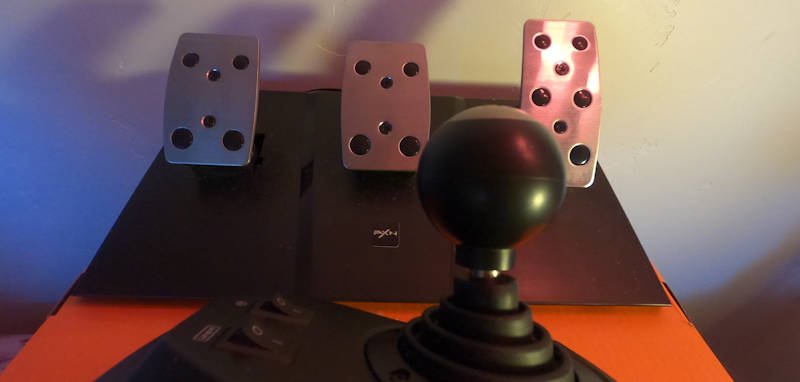
I am super happy with this purchase, which is the PXN V9 version 1 wheel, “Used Like New” from Amazon, with 3-pedal setup and 6 speed shifter currently at $129 as I write this (that’s a paid link, fyi).
The top line is, I love having a steering wheel for American/Euro Truck Simulator (ATS/ETS)! I ignored the majority of reviews that say force feedback is a necessity. And what about shifting gears? Having the shifter makes the game that much more immersive. While I still stall out at times, it’s really more fun to play with a shifter.
Check it out using my Amazon affiliate link please, I’m just starting out and need some sales, if you buy this wheel with this link it won’t cost you any more and I establish a track record and earn a few $$: https://amzn.to/4fly1Fy thanks.
You can check out this YouTube video to see me using the wheel.
TECH NOTE: I want to mention up top here, to make this wheel work with ATS/ETS, the Mode button needs to be pressed for 3 seconds EVERY TIME you plug in the steering wheel. It does not remember this setting. You also need to upgrade the firmware, that’s the very first thing in setting up this wheel, you only do that once. More details below…
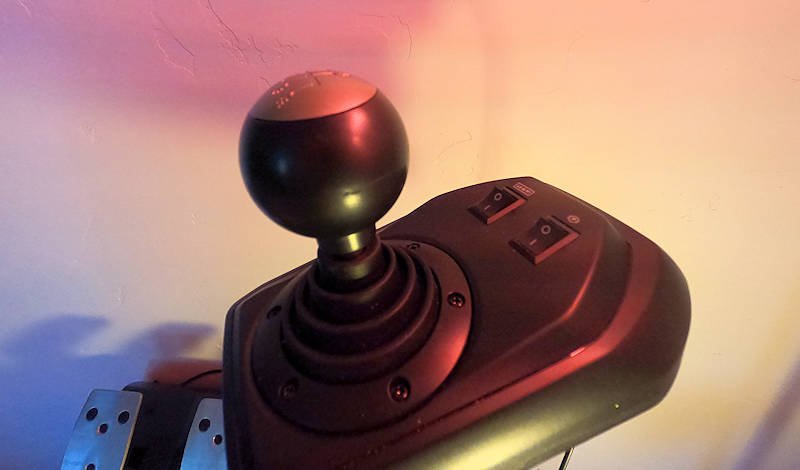
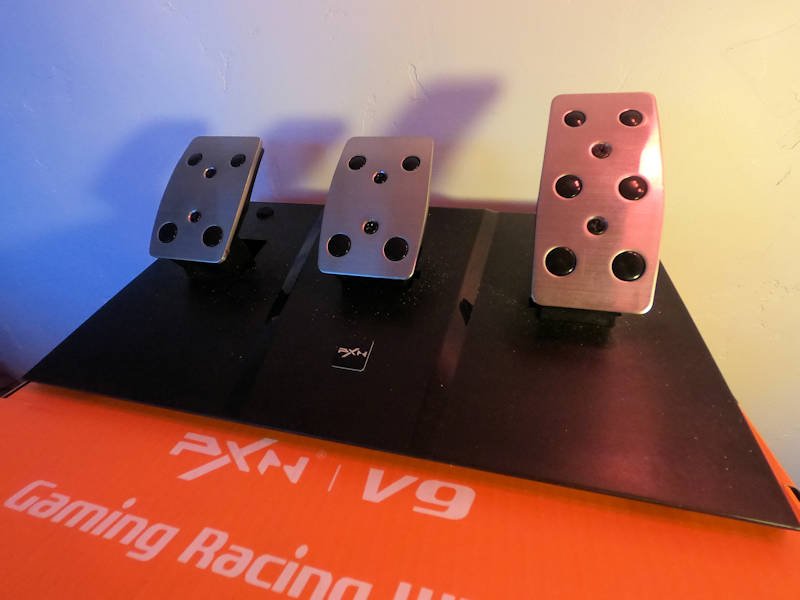
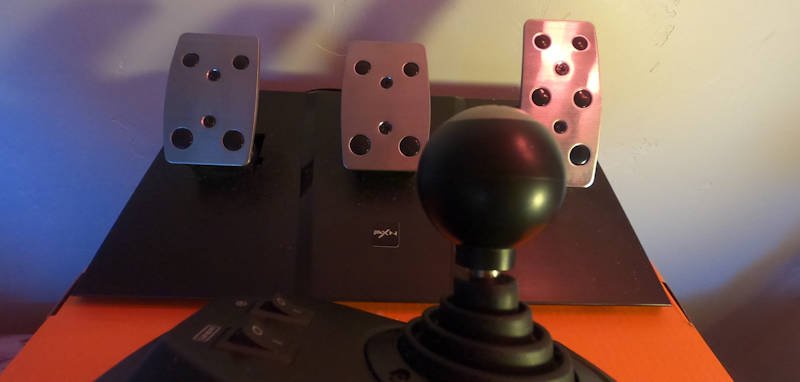
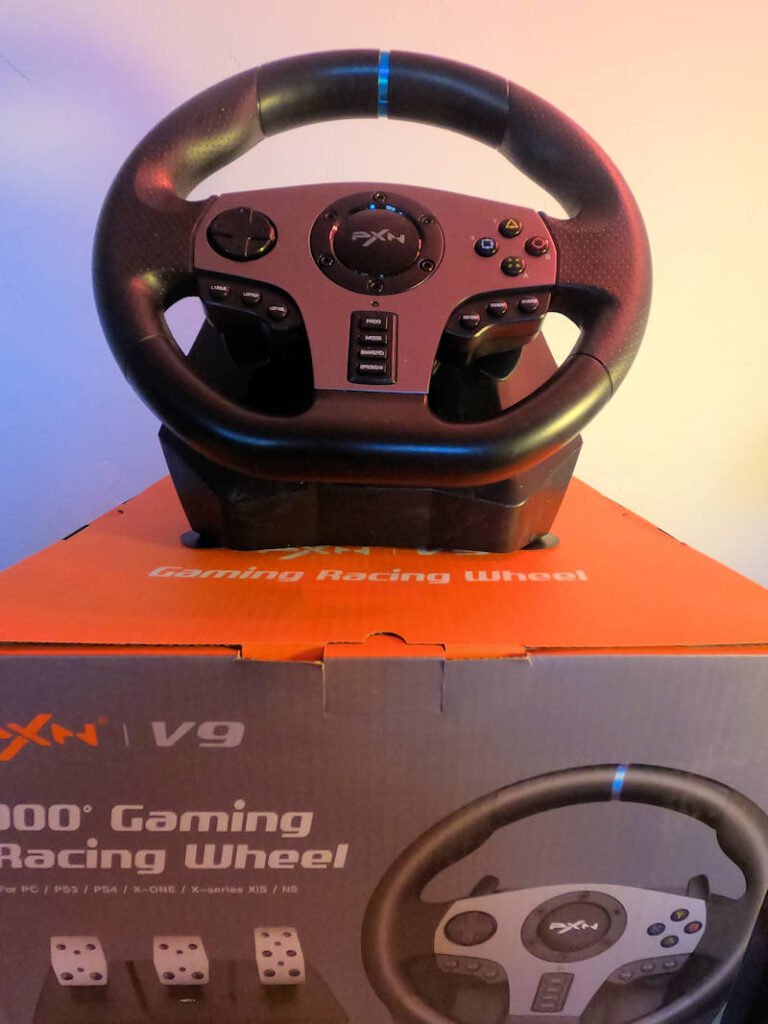

Please read my functional review first, then skip down to the game usability section of the review after the photos. Here’s the TL;DR:
- For those who aren’t demanding force feedback, it’s a great wheel.
- NOTE: The wheel gives some feedback, but it’s not working for me yet in American Truck Simulator.
- NOTE: The app also doesn’t work for me, I have not contacted support yet.
- For the “wheel-less” this is a game changer!
- It makes truck sims much more immersive with shifting.
- It’s much easier to stay in your lane with this wheel.
- There are setup issues, you probably won’t be able to use the clamps.
- Keep the box, you’ll probably love it but if you don’t, return it.
- There is a problem of where to store the wheel when you’re not using it!
Functional Review
If anyone is wondering about using this wheel with a racing game, I played about ten minutes in DiRT Rally 2.0 and it was a blast, much more fun than using a controller. Even without force feedback, it was a huge improvement on the experience.
For American Truck Simulator (and Euro Truck Simulator), getting this PXN V9 version 1 wheel was a literal game changer — at the right price ($129).
The only downside, I use it for trucking simulator games primarily, where I’m not wrenching hard on the wheel. I don’t actually have the wheel mounted, I’m just relying on the weight of the unit to keep it in place, along with the non-skid mat it’s placed on.
If you are needing to actually mount the wheel, you virtually need a glass desktop, something very smooth, for the mounting suction cups to work. There’s also a couple of mounting clamps included, but those clamps hang down below the desk in such a way that my legs hit them, so I flat-out can’t use the clamps.
Thus, if you’re mounting this on a full-height (30″) desk, maybe there’s space under the wheel/desk/clamps for your legs with the clamps, but the wheel will be very high up (unless you are very tall). Me, I use a keyboard tray slide out that the wheel sits on very nicely. As noted, this leaves no room for my legs to fit if I were to clamp the wheel down. I have not had any slippage problems in trucking simulators so far, your mileage will probably vary. Here you can see my setup:
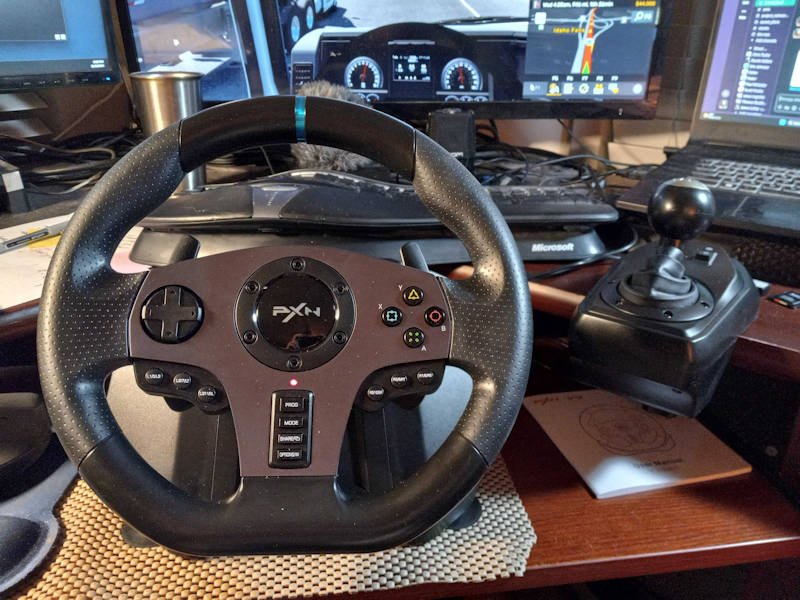
The other functional problem with having a wheel at all is, where are you going to set it up? For me, it fits nicely on my desk, even if my keyboard is a reach/stretch when the wheel is in place. I can hit the keys I need to in-game, but to get any real work done, I have to move the wheel out of the way. Some people may opt to purchase a racing stand setup, this would avoid the functional issues with using this wheel on a desk.
That’s it for the functional review! If you’re a racing type who will wrench hard on the wheel often, then maybe you may have mounting issues if you need the clamps. But for us more sedate truck sim drivers, this wheel works fine for me unmounted (noting that I am using a non-skid mat as a base).
I would definitely recommend this wheel for trucking simulators. The last thing to mention up top, if you’re a PC user, make sure you upgrade the firmware, then you can use the Mode button (hold it for 3 seconds) to switch to the input style which American Truck Simulator seems to like the most.
Hey everyone welcome to truckandtrain.com, at the time of writing this review this is a brand new site. You’re reading the first post!
Game Usability Review
Introduction
I was using American Truck Simulator (ATS), as well as Euro Truck Simulator (ETS) for a couple months with a progression of controllers. I have an old GamerSir T1s but I thought maybe a different controller would let me control the game better. I tried a couple other controllers, but finally decided to take the plunge and get a steering wheel for ATS/ETS.
For now I am not going too add many photos or a video to this review, there’s a bunch of reviews out there that capture the looks and several review videos on Youtube, so you should pretty much know what this kit looks like.
To be clear, this is the kit that I’m talking about above. The link as of this writing in November 2024 is: https://www.amazon.com/dp/B09GFD8FY4. It’s currently going for $129.99 (about $140 with tax). It’s the V9 “version 1” wheel, with the 6 speed shifter and the 3-pedal setup with accelerator, brake and clutch.
Setup / Installation
Out of the box, I plugged in the wheel and played DiRT Rally 2.0 for about ten minutes. I have played this game before on a controller, and the difference was night and day, I really had a blast! Using a wheel made the game so much more intuitive and controllable. I already have decades of driving experience to know how to use a wheel, while I’m basically a newb on a controller, so of course having a wheel as a controller is going to make a difference — I just didn’t realize how big.
- So if you’re still on the fence about getting a wheel, sticking to your controllers, or worse, using the keyboard and mouse to drive, it’s time to get off the fence and get this wheel, or some wheel.
- Honestly if you have the $$$$ just get the Logitech G29, but the “Used Like New” combo with shifter and three pedals is $250 right now on Amazon and the new model is nearly $300!
- For the current “Used Like New” price of $129, this PXN wheel was at my sweet spot, and I’m very happy with it.
The first thing you need to do with this to play ATS is upgrade the firmware. There’s a nice little app that does this you can download from the PXN website. To be sure, I’d run it through VirusTotal before I run it on my machine: e-pxn.com/sites/pxn/files/tools/v9the-firmwarev2.35_0.zip.
Once I did the firmware upgrade, I then had to hold the Mode button for three seconds and if I understand it, the wheel switches from X-input to Directinput. At this point ATS/ETS can see the wheel in the controller setup wizard. Choose the steering wheel option, then choose the option for manual shifting. I chose the split-gears option at the top, where I shift through gears 1-6, then flip a switch and my shifter becomes gears 7-12 (or 10 if you only have a 10-speed truck).
My truck is a ten-speed so I only get gears 7-10 on the top range. I actually don’t know if there’s 18-speed trucks in ATS, I assume there are. In that case, there’s a setting for a second shifter toggle to indicate the top gears. I don’t know how that works yet. I would assume you’d use the second switch on the shifter to reach the 13-18 range.
- One important note: I found the PXN apps don’t recognize the wheel so I don’t have the benefit of setting up the wheels with the apps.
This wheel does get some complaints because it requires setup. I’m pretty good with computers, if you’re not, you’ll be OK if you’re just playing ATS/ETS. But if you want it to work with a variety of games, you’ll probably have to map all the inputs for the game to use the wheel with it, for each game. This can get old.
I don’t have any experience with any other wheel, I would guess the Logitech wheels are more plug and play, but I don’t really know.
Cable Connections
The steering wheel comes with a seven foot cord with a USB-A male connector to plug into your computer (or console). This cord is an ample seven feet long, and it’s easy enough to find USB-A extension cords if you need to be further away from the computer/console for some reason.
Next up is the cord for the gear shifter, this is also an ample length. One would think the shifter is always going to be next to the steering wheel and the company could have gone the cheap way with a short two foot cable. Instead, the gearshift cable is just over 5 feet long, with a RJ11 cable end.
The RJ11 cable is a standard telephone cable, the one that connects the telephone to the wall jack. Here’s it’s also easy enough to find an extension cord for RJ11, but for the shifter it’s hard to imagine you’d want to locate this more than five feet from the steering wheel base. Next we’ll look at the pedals, these use a RJ-9 jack. This RJ-9 jack is the jack used on landline/VoiP phones for the handset.
The pedals are where there’s a problem. The cord there is also only five feet long. For me, this means I have to run the cable from the pedals directly vertically up to the slide-out keyboard shelf/tray where I normally keep my keyboard. I don’t have enough cord length to route the cord behind my desk and over the desktop to reach the wheel, where the cord would be away from my moving feet. This hasn’t been a problem so far, but the cable is (in my opinion) too close to my feet for comfort.
It would just take one misplaced emergency stab at the brake pedal to damage the cable, it really needs to be routed better. What I would much prefer is up to a ten foot cord for the pedals, so I could enough length to route the cord on the floor to the wall, then up behind my desk and then crossing over the desktop to connect to the steering wheel.
The solution is to get one of two things. One option is this 3.5 foot RJ-9 cord splitter/extension. The solution I chose is a good old fashioned handset cable that coils up and will stretch out to just the right length for me. I had an unused handset cord laying around, but they can be had on Amazon for about $8. Honestly you could go to the local thrift shop and find a handset cord (and the whole phone) for a few bucks.
The harder piece to find that you’ll have to go online for is the RJ-9 coupler. You need a female-to-female RJ-9 coupler to connect your extension cord to the pedal’s cable RJ-9 connector. I got these connectors/couplers, I will update this post in a few days when I get them to confirm the pedal extension cable is working.
The Rest of the Buttons
There’s a lot of buttons on the front and and two paddles on the back of the wheel. The paddles are fine, a bit cheap feeling. I don’t use them, I haven’t thought of a good use for them yet. I wanted to be able to map them to the accelerator and brake, in case I ever wanted to use them for that.
The problem I’m running into, you can’t map (in-game) two different buttons to the same action. In theory, the PXN mobile app will be able to do this mapping. As noted, I can’t get these apps to see my wheel yet, so I haven’t had the pleasure yet.
Anyways, the buttons. The typical controller buttons are there (the up-down/left-right pad and the ABXY buttons). I used the directional pad for looking up and down, and left and right, in the cab view. If I hold the up button down a while, it will trigger the next camera view. Holding the down button down a while resets to the cab view.
On the ABXY buttons, I use left X and right B buttons for left- and- right hand turn signals. Holding B down a while doubles up as the way to start and stop the engine. I use the bottom A button for wipers and the top Y button for high beams. I just control my lights from the keyboard with the L key.
Then there’s three buttons on the left and three more on the right to map. On the right hand side, I map the left of three buttons to cruise control on. Then the middle and right buttons are mapped to horns for fun. I could think of something more useful to map the middle and right (of the right hand buttons) to.
On the left hand side, the three button group is setup as follows: left of three buttons is mapped to Increase Cruise Control. The middle button is set to Decrease Cruise Control, and the right of three buttons is set to Resume Cruise Control.
Dead Zones
There’s a problem I’ve seen in some video reviews where some steering wheels have a huge dead zone where you can turn the wheel up to 10-20 degrees in each direction without the game responding. This hasn’t been a problem for me with this wheel. The PNX V9 wheel has the 270/900 setting, allowing the wheel to turn either 270 degrees for racing style games, or 900 degrees for the truck sims.
If you think about it, if the wheel has let’s say 300 points of resolution (that is, different wheel positions), then in 270 degree mode you need to move the wheel about one degree to register a change. In theory there’s a dead zone of 2%, not bad. Now switch the wheel to the 900 degree setting and this dead zone becomes 6%, which is more noticeable.
Now put aside the theory. In practice, I do not have any noticeable dead zone when playing ATS/ETS with this wheel. I don’t find myself moving the wheel significantly without the game responding to my input. Despite some of the videos out there, to me this wheel is about as much like driving a real car as it’s gonna get. I’m mechanically inclined, if it felt like I had a bad steering box with lots of play, I would notice. (maybe I will make a video at some point showing the responsiveness here).
I would note again, the wheel is not reporting a continuous signal back to the computer. I mean to say, even though you move the wheel smoothly, there are only so many positions the wheel keeps track of, I think it’s about 300. Not extending the math from above, this means on the 900 degree setting you need to move the wheel about three degrees to register the next steering position. In other words, the wheel isn’t reporting a continuously changing float value back, it’s reporting discrete integer values like -9, -6, -3, 0, 3, 6, 9, and so on.
This brings me to one of the few downsides of playing the game with a wheel. Because the reporting positions of the wheel are discrete and not continuous, the visual appearance of the wheel in the game is a bit jerky. The wheel doesn’t move smoothly between positions, it gets redrawn in the new position, so it looks like the wheel is slightly jerking by about 3 degrees every step.
Is this a problem? No, and to be clear I play the game with the windshield in the upper half of the screen and the steering wheel / instrument panel is in the lower half of the screen, so I might be seeing more of the wheel than most players.
Downsides of Playing With a Wheel
I mentioned downsides of playing with a wheel, what are they?
- If you’re playing at your desk, you have to move your keyboard to put the wheel in place.
- Holding down the accelerator with your foot for extended times can cause back pain (use cruise control).
Now, this specific wheel I got, as I mentioned, I’m not getting any vibration from American Truck Simulator on the wheel, and I have the setting turned on in ATS. I don’t know if the vibration is just broken on my wheel and I don’t really care.
There’s a plethora of other articles saying that you should spend $250-400 on a Force Feedback Wheel, like the (currently as of 11/17/24) $309 G920 wheel on Amazon. The full title is: Logitech G920 Driving Force Racing Wheel and Pedals, Force Feedback + Logitech G Driving Force Shifter.
It looks like a nice wheel but my budget was $125 so the (as of November, 2024) $129 PXN V9 “Used Like New” version 1 wheel works well for me, here’s the full description: Racing Steering Wheel Gaming Racing Wheel, Used – Like New PXN Driving Wheel Volante PC 270/900 Degree Vibration and Shifter with Pedals for PC,PS3,PS4 (V9-1).
Strangely, for the same price of $129, there’s a “Used” Wheel listed as well, in case the “Used Like New” is sold out, here’s the link.
(I’m still adding to this article)
Leave a Reply